Animation & Playback
Browser Viewer
The simplest way to display an animation is canvas.show(), which
automatically parses CLI arguments and either opens the browser viewer or
exports to a file:
canvas.show(end=5)
CLI Flag |
Default |
Description |
|---|---|---|
|
off |
Enable debug logging |
|
60 |
Frames per second |
|
8765 |
WebSocket server port |
|
none |
Export to file (format inferred from extension: |
|
none |
Animation duration in seconds |
|
0 |
Start time |
|
none |
End time |
|
off |
Re-run script on file save |
Tip
Examples:
python my_scene.py              # open browser viewer
python my_scene.py -v           # verbose logging
python my_scene.py --fps 30     # set frame rate
python my_scene.py --port 9000  # custom port
python my_scene.py -o out.mp4   # export to video
python my_scene.py -o frame.svg # export single SVG frame
python my_scene.py -d 5         # set duration to 5 seconds
You can also call browser_display() directly for more control:
canvas.browser_display(start=0, end=None, fps=60, port=8765, hot_reload=False)
Keyboard Shortcuts
Key |
Action |
|---|---|
Space / P |
Pause / Resume |
R |
Restart from beginning |
, / . |
Step backward / forward one frame |
Left / Right |
Previous / next section |
- / + / Up / Down |
Slower / faster (0.25x increments) |
0–9 |
Jump to 0%–90% of the animation |
Home / End |
Jump to start / end |
F |
Reset zoom to fit |
S |
Save current frame as SVG |
Shift+S |
Save current frame as PNG |
C |
Copy SVG to clipboard |
L |
Toggle loop |
B |
Cycle background (dark / white / checker) |
Ctrl+B |
Add / remove bookmark |
[ / ] |
Previous / next bookmark |
H |
Hide / show toolbars |
G |
Toggle grid overlay |
I |
Inspect mode (nearest object) |
M |
Measure tool (click two points) |
N |
Toggle snap mode |
D |
Toggle debug panel |
? |
Help overlay |
Q |
Quit |
Scroll wheel |
Zoom in/out at cursor position |
Debug Panel
Press D to toggle the debug panel. It shows:
Current time and frame number
Total frames
List of visible objects at the current time
Snap Mode
Press N to toggle snap mode. When enabled, moving the mouse over the SVG canvas snaps the cursor to nearby object points (centres, corners, etc.), shown with a visual indicator.
Sections
Sections let you pause the animation at specific times, useful for presentations:
canvas.add_section(3)   # pause at t=3
canvas.add_section(6)   # pause at t=6
During playback, the animation pauses at each section boundary. Press Arrow Right to continue to the next section.
Example: sections demo
Objects appear in phases separated by section breaks. During playback
the animation pauses at each add_section time.
"""Sections demo -- objects appear in phases."""
from vectormation.objects import *

v = VectorMathAnim()
v.set_background()

# Phase 1: circle fades in
circle = Circle(r=80, cx=480, cy=540, fill='#58C4DD', fill_opacity=0.8)
circle.fadein(start=0, end=1)

# Section break at t=2
v.add_section(2)

# Phase 2: rectangle fades in
rect = Rectangle(160, 160, x=880, y=460, fill='#E74C3C', fill_opacity=0.8)
rect.fadein(start=2, end=3)

# Section break at t=4
v.add_section(4)

# Phase 3: text fades in
txt = Text('VectorMation', x=1300, y=540, font_size=48, fill='WHITE')
txt.fadein(start=4, end=5)

v.add(circle, rect, txt)

v.show(end=6)
Playback Speed
Speed can be adjusted during playback with + / - keys, or via the toolbar buttons. The current speed and FPS are shown in the toolbar.
Example: animation timing
The same shift animation with different start/end durations.
Shorter intervals mean faster motion.
"""Animation timing -- same motion at different durations."""
from vectormation.objects import *

v = VectorMathAnim()
v.set_background()

labels = ['1 second', '2 seconds', '4 seconds']
durations = [1, 2, 4]
colors = ['#E74C3C', '#3498DB', '#2ECC71']

for i, (label, dur, color) in enumerate(zip(labels, durations, colors)):
    y = 270 + i * 270
    txt = Text(label, x=100, y=y, font_size=32, fill=color)
    c = Circle(r=25, cx=400, cy=y, fill=color, fill_opacity=0.8)
    c.shift(dx=800, start=0.5, end=0.5 + dur)
    v.add(txt, c)

v.show(end=5)
Static Pictures
Pass end=0 to display a single static frame with no animation:
canvas.browser_display(end=0)
Exporting
SVG Frame
canvas.write_frame(time=2.5, filename='frame.svg')
All Sections as SVG
canvas.export_sections(prefix='slide')
# Writes slide_000.svg, slide_001.svg, ... for each section boundary
PNG
Export a single frame as PNG (requires cairosvg):
canvas.export_png(time=0, filename='frame.png', width=None, height=None)
width and height control the output resolution. If omitted, the canvas dimensions are used.
Video (MP4)
Export the animation as an MP4 video (requires cairosvg and ffmpeg):
canvas.export_video(filename='animation.mp4', start=0, end=None, fps=60)
Note
Video export requires ffmpeg to be installed and available on your
PATH. On Debian/Ubuntu: sudo apt install ffmpeg. On macOS:
brew install ffmpeg. On Arch: sudo pacman -S ffmpeg.
Animated GIF
Export the animation as a GIF (requires cairosvg and Pillow):
canvas.export_gif(filename='animation.gif', start=0, end=None, fps=30, scale=1.0, loop=0)
Parameter |
Description |
|---|---|
|
Scale factor for output dimensions (e.g. |
|
Number of loops ( |
Example: static frame export
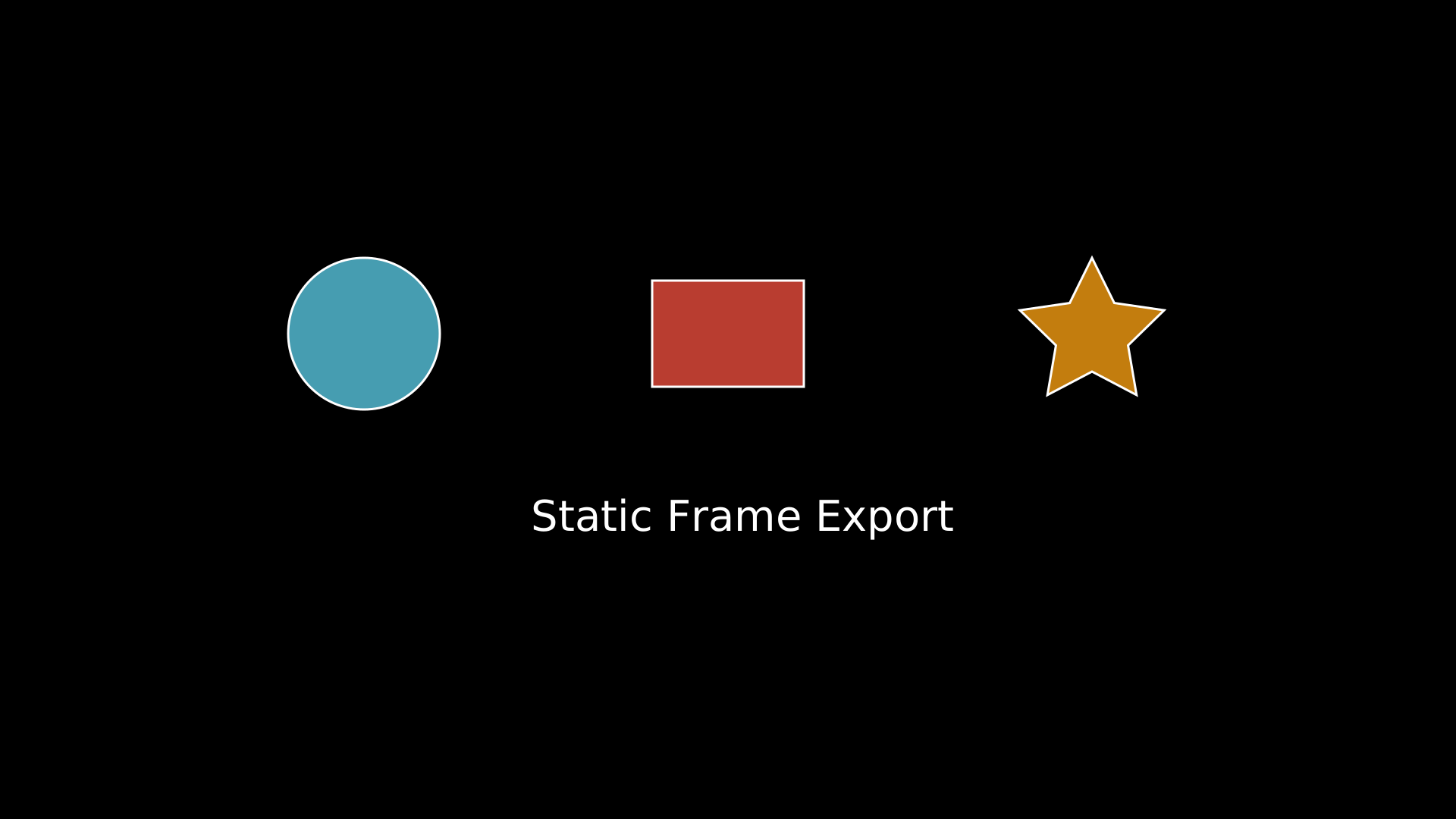
A composed scene exported as a single SVG frame with write_frame.
"""Static composed scene for frame export."""
from vectormation.objects import *

v = VectorMathAnim()
v.set_background()

# A composed static scene
circle = Circle(r=100, cx=480, cy=440, fill='#58C4DD', fill_opacity=0.8, stroke_width=3)
rect = Rectangle(200, 140, x=860, y=370, fill='#E74C3C', fill_opacity=0.8, stroke_width=3)
star = Star(n=5, outer_radius=100, inner_radius=50, cx=1440, cy=440,
            fill='#F39C12', fill_opacity=0.8, stroke_width=3)
title = Text('Static Frame Export', x=700, y=700, font_size=56, fill='WHITE')

v.add(circle, rect, star, title)

v.show(end=1)
Hot Reload
Enable hot reload to automatically re-run the script when you save changes:
canvas.browser_display(hot_reload=True)
The browser stays open and updates live – useful during development.