VectorMathAnim
The canvas is the top-level object that manages all visual objects, camera
controls, frame generation, and export. Every VectorMation script creates
exactly one VectorMathAnim instance.
Constructor
- class VectorMathAnim(save_dir, width=1920, height=1080, scale=1, verbose=False)
Create a new canvas with a given save directory and viewport size.
- Parameters:
save_dir (str) – Directory where SVG frames are saved. Created automatically if it does not exist.
width (int) – ViewBox width in pixels (default
1920).height (int) – ViewBox height in pixels (default
1080).scale (int) – Pixel scale factor applied to the output
<svg>element.1gives native resolution;2doubles it.verbose (bool) – When
True, enableDEBUG-level logging.
The canvas creates a default viewBox of
0 0 width heightand maintains an internal clock (canvas.time) used bygenerate_frame_svg()when no explicit time is given.- duration: float
Read-only property. Returns the total animation duration in seconds, auto-detected from the latest animation end time across all registered objects and camera keyframes.
- viewbox: tuple
The current
(x, y, width, height)viewBox. Readable and writable. Writing sets all four viewBox attributes from the current canvas time onward.
from vectormation.objects import *

canvas = VectorMathAnim(save_dir='svgs/my_animation', verbose=True)
Example: Basic scene
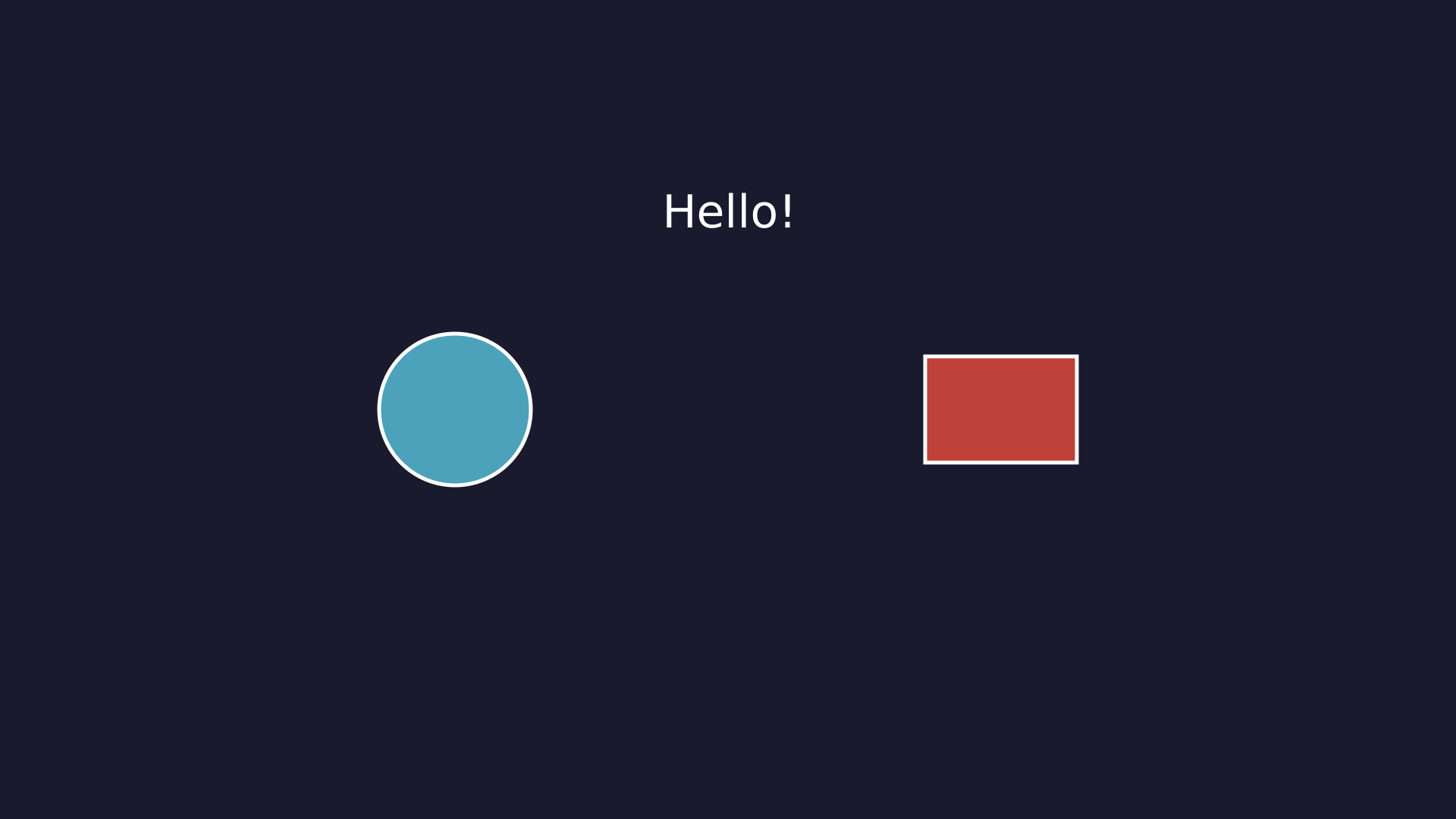
"""Basic canvas scene with shapes."""
from vectormation.objects import *

v = VectorMathAnim()
v.set_background(fill='#1a1a2e')

c = Circle(r=100, cx=600, cy=540, fill='#58C4DD', fill_opacity=0.8)
r = Rectangle(200, 140, x=1220, y=470, fill='#E74C3C', fill_opacity=0.8)
t = Text('Hello!', x=960, y=300, font_size=60, fill='#fff',
         stroke_width=0, text_anchor='middle')

v.add(c, r, t)

v.show(end=0)
Scene Setup
- VectorMathAnim.set_background(creation=0, z=-1, grid=False, grid_spacing=60, grid_color='#333', **styling)
Add a full-canvas background rectangle. Optional grid lines can be overlaid for alignment or debugging.
- Parameters:
creation (float) – Time at which the background appears.
z (int) – Z-order (default
-1, behind everything).grid (bool) – Draw grid lines over the background.
grid_spacing (float) – Distance (pixels) between grid lines.
grid_color (str) – Grid line colour.
styling – Any additional SVG styling (
fill,fill_opacity, etc.). When no fill is given the Styling defaults apply.
- Returns:
self(for chaining).
Calling
set_backgroundagain replaces the previous background.canvas.set_background(fill='#1a1a2e') canvas.set_background(fill='#0d1b2a', grid=True, grid_spacing=135)
Adding and Removing Objects
- VectorMathAnim.add_objects(*args)
Register one or more objects for rendering. Objects are drawn each frame sorted by z-order.
- Parameters:
args – VObject or VCollection instances.
- Returns:
self(for chaining).
addis an alias foradd_objects.circle = Circle(r=80, fill='#58C4DD') label = Text(text='Hello', x=960, y=540) canvas.add_objects(circle, label) # or equivalently: canvas.add(circle, label)
- VectorMathAnim.remove(*args)
Remove objects from the canvas so they are no longer rendered.
- Parameters:
args – Objects previously added via
add_objects().- Returns:
self(for chaining).
- VectorMathAnim.clear()
Remove all objects from the canvas except the background and defs. Useful for multi-scene scripts that rebuild the scene between segments.
- Returns:
self(for chaining).
- VectorMathAnim.add_def(def_obj)
Register a gradient, clip path, or filter for the
<defs>block. The object must have anidattribute and ato_svg_def(time)method.Aliases:
add_gradient,add_clip_path.- Returns:
self(for chaining).
- VectorMathAnim.add_section(time)
Add a section break at the given time. Sections allow pausing playback in the browser viewer (press
Nto jump to the next section). They are also used byexport_sections().- Parameters:
time (float) – Section boundary time in seconds.
- Returns:
self(for chaining).
Frame Generation
- VectorMathAnim.generate_frame_svg(time=None)
Return the complete SVG string for a single frame at the given time.
- Parameters:
time (float) – Timestamp to render. Defaults to
canvas.time.- Returns:
SVG string (including XML declaration and
<svg>wrapper).- Return type:
str
This is the core rendering method. It:
Evaluates the animated viewBox at time.
Emits any
<defs>(gradients, clip paths).Collects all objects whose
showattribute isTrueat time.Sorts them by z-order.
Runs updaters on each object.
Calls
to_svg(time)on each object and concatenates the result.Rounds floating-point numbers for compact output.
- VectorMathAnim.write_frame(time=None, filename=None)
Write an SVG frame to disk.
- Parameters:
time (float) – Timestamp (defaults to
canvas.time).filename (str) – Output path. Defaults to
<save_dir>/gen.svg.
Camera Controls
All camera methods animate the SVG viewBox, which effectively pans and zooms
the visible region. They return self for chaining.
- VectorMathAnim.camera_shift(dx, dy, start, end, easing=smooth)
Pan the camera by
(dx, dy)pixels over[start, end].- Parameters:
dx (float) – Horizontal shift in pixels.
dy (float) – Vertical shift in pixels.
start (float) – Animation start time.
end (float) – Animation end time.
easing – Easing function (default
smooth).
# Slowly pan 400px to the right over 2 seconds
canvas.camera_shift(400, 0, start=1, end=3)
- VectorMathAnim.camera_zoom(factor, start, end, cx=None, cy=None, easing=smooth)
Example: camera_zoom
"""Camera zoom example."""
from vectormation.objects import *

v = VectorMathAnim()
v.set_background(fill='#1a1a2e')

c1 = Circle(r=60, cx=500, cy=400, fill='#58C4DD', fill_opacity=0.8)
c2 = Circle(r=60, cx=1420, cy=640, fill='#E74C3C', fill_opacity=0.8)
c1.fadein(start=0, end=0.5)
c2.fadein(start=0, end=0.5)

v.camera_zoom(2.5, start=1, end=2.5, cx=500, cy=400)
v.camera_reset(3.5, 5)

v.add(c1, c2)

v.show(end=6)
Zoom the camera by factor around the point
(cx, cy)over[start, end].factor > 1zooms in;factor < 1zooms out.- Parameters:
factor (float) – Zoom factor.
start (float) – Animation start time.
end (float) – Animation end time.
cx (float) – Zoom centre x (default: canvas centre).
cy (float) – Zoom centre y (default: canvas centre).
easing – Easing function (default
smooth).
# Zoom 2x into the upper-left quadrant
canvas.camera_zoom(2, start=0, end=2, cx=480, cy=270)
- VectorMathAnim.camera_follow(obj, start, end=None)
Make the camera continuously track an object, keeping it centred in the viewport. If end is given, the camera freezes at its position at that time.
- Parameters:
obj (VObject) – Object to follow.
start (float) – When tracking begins.
end (float) – When tracking ends (
None= track indefinitely).
Example: camera_follow
"""Camera follow example."""
from vectormation.objects import *

v = VectorMathAnim()
v.set_background(fill='#1a1a2e')

dot = Dot(cx=200, cy=540, r=14, fill='#58C4DD')
dot.fadein(start=0, end=0.3)
dot.shift(dx=1600, start=0.5, end=4.5)

line = Line(200, 540, 200, 540, stroke='#58C4DD', stroke_width=3)
line.p2.set_onward(0, dot.c.at_time)
v.camera_zoom(3, start=0, end=0.5)
v.camera_follow(dot, start=0.5, end=4.5)

v.add(line, dot)

v.show(end=5)
- VectorMathAnim.camera_reset(start, end, easing=smooth)
Reset the camera to the default full-canvas viewBox (
0 0 width height) over[start, end].- Parameters:
start (float) – Animation start time.
end (float) – Animation end time.
easing – Easing function (default
smooth).
- VectorMathAnim.focus_on(*objects, start, end, padding=100, easing=smooth)
Pan and zoom the camera to tightly frame the given objects (with padding), maintaining the canvas aspect ratio.
- Parameters:
objects – One or more VObject/VCollection instances to frame.
start (float) – Animation start time.
end (float) – Animation end time.
padding (float) – Extra padding (pixels) around the bounding box.
easing – Easing function (default
smooth).
canvas.focus_on(circle, label, start=1, end=2, padding=80)
# ... inspect detail ...
canvas.camera_reset(3, 4)
Display
- VectorMathAnim.browser_display(start=0, end=None, fps=60, port=8765, hot_reload=False)
Open a browser-based viewer with real-time playback over WebSocket. The viewer supports zoom (scroll wheel), playback speed control, keyboard shortcuts, and a timeline scrubber.
- Parameters:
start (float) – Playback start time. Negative values are relative to the end (e.g.
-3starts 3 seconds before the end).end (float) – Playback end time.
Noneauto-detects from the last animation.0displays a single static frame at start (no animation).fps (int) – Frames per second.
port (int) – WebSocket server port.
hot_reload (bool) – When
True, watches the calling script for file changes and automatically re-runs it, allowing a live development workflow.
Keyboard shortcuts in the browser viewer:
Key
Action
Space/PPause / resume playback
RRestart from the beginning
,/.Step backward / forward one frame
Left/RightPrevious / next section
-/+/Up/DownSlower / faster (0.25x increments)
0–9Jump to 0%–90%
Home/EndJump to start / end
FReset zoom to fit
S/Shift+SSave SVG / PNG
CCopy SVG to clipboard
LToggle loop
BCycle background
GToggle grid overlay
IInspect mode
MMeasure tool
NToggle snap
DDebug panel
?Help overlay
QQuit the server
Single-picture mode:
Pass
end=0to display a static frame without animation. This is useful for debugging layouts.# Static preview at t=0 canvas.browser_display(start=0, end=0)
Export
- VectorMathAnim.export_png(time=0, filename='frame.png', scale=None)
Export a single frame as a PNG image.
- Parameters:
time (float) – Timestamp to render.
filename (str) – Output file path.
scale (int) – Pixel scale factor.
Noneuses the canvasscale.
Requires
cairosvg(pip install cairosvg).
- VectorMathAnim.export_video(filename='animation.mp4', start=0, end=None, fps=60, scale=None)
Export the animation as an MP4 video.
- Parameters:
filename (str) – Output file path.
start (float) – Start time.
end (float) – End time (
None= auto-detect).fps (int) – Frames per second.
scale (int) – Pixel scale factor (
1= 1920x1080,2= 3840x2160).
Requires
cairosvgandffmpeg.canvas.export_video('output.mp4', fps=30, end=10)
- VectorMathAnim.export_gif(filename='animation.gif', start=0, end=None, fps=30, scale=None, loop=0)
Export the animation as an animated GIF.
- Parameters:
filename (str) – Output file path.
start (float) – Start time.
end (float) – End time (
None= auto-detect).fps (int) – Frames per second.
scale (int) – Pixel scale factor.
loop (int) – Number of loops (
0= infinite).
Requires
cairosvgandPillow.
- VectorMathAnim.export_sections(prefix='section')
Export each section boundary as a standalone SVG file. Files are written to the canvas save directory as
<prefix>_000.svg,<prefix>_001.svg, etc.- Parameters:
prefix (str) – Filename prefix.
Inspection
- VectorMathAnim.get_all_objects()
Return a list of all registered objects (excluding the background).
- Return type:
list[VObject]
- VectorMathAnim.find_by_type(cls)
Return all objects matching a given class (including subclasses).
- Parameters:
cls (type) – The class to filter by (e.g.
Circle,Text).- Return type:
list[VObject]
- VectorMathAnim.find(predicate)
Return all objects where
predicate(obj)returnsTrue.- Parameters:
predicate (callable) – Filter function.
- Return type:
list[VObject]
- VectorMathAnim.get_object_count(time=None)
Return the number of visible objects at the given time (excludes the background).
- Parameters:
time (float) – Timestamp (default
0).- Return type:
int
- VectorMathAnim.list_objects_by_type(time=None)
Return a dict mapping class names to lists of visible objects of that type at the given time.
- Parameters:
time (float) – Timestamp (default
0).- Return type:
dict[str, list[VObject]]
- VectorMathAnim.get_visible_objects_info(time=None)
Return a list of dicts with
'class'and'id'keys for each visible object at the given time.- Parameters:
time (float) – Timestamp (defaults to canvas time).
- Return type:
list[dict]
- VectorMathAnim.get_snap_points(time=None)
Extract snappable points (vertices, endpoints, centres) from all visible objects at the given time. Used internally by the browser viewer’s snap-to-grid feature.
- Parameters:
time (float) – Timestamp (defaults to canvas time).
- Return type:
list[tuple]
CLI Utility
- parse_args()
Parse common command-line arguments for VectorMation scripts. Returns an
argparse.Namespacewith the following fields:Flag
Type
Default
Description
-v/--verbosebool
FalseEnable verbose (debug) logging
--portint
8765Browser viewer WebSocket port
--fpsint
60Frames per second
-o/--outputstr
NoneOutput file path (e.g.
out.mp4,frame.png)-d/--durationfloat
NoneAnimation duration override (seconds)
--startfloat
NonePlayback start time
--endfloat
NonePlayback end time
--hot-reloadbool
FalseRe-run script on file change in browser viewer
from vectormation.objects import *

args = parse_args()
canvas = VectorMathAnim(save_dir='svgs/demo', verbose=args.verbose)
From the command line:
python my_script.py -v --fps 30 --hot-reload
python my_script.py -o animation.mp4
Workflow Examples
Basic setup
A minimal script that creates a canvas, adds an object with an animation, and opens the browser viewer.
from vectormation.objects import *

args = parse_args()
canvas = VectorMathAnim(save_dir='svgs/basic', verbose=args.verbose)
canvas.set_background(fill='#1a1a2e')

circle = Circle(r=100, fill='#58C4DD', fill_opacity=0.8)
circle.fadein(0, 1)
circle.shift(dx=400, start=1, end=3)

canvas.add(circle)

canvas.browser_display(fps=args.fps, port=args.port, hot_reload=args.hot_reload)
Camera animation
Combine camera methods to guide the viewer’s attention through a scene.
from vectormation.objects import *

args = parse_args()
canvas = VectorMathAnim(save_dir='svgs/camera', verbose=args.verbose)
canvas.set_background()

c1 = Circle(r=50, cx=300, cy=300, fill='#58C4DD')
c2 = Circle(r=50, cx=1600, cy=700, fill='#83C167')
c1.fadein(0, 0.5)
c2.fadein(0, 0.5)

# Focus on the first circle
canvas.focus_on(c1, start=1, end=2, padding=80)

# Reset to full view
canvas.camera_reset(3, 4)

# Zoom into the second circle
canvas.camera_zoom(3, start=5, end=6, cx=1600, cy=700)

# Reset again
canvas.camera_reset(7, 8)

canvas.add(c1, c2)
canvas.browser_display(fps=args.fps, port=args.port)
Browser preview with hot reload
Hot reload watches the script file for changes and re-runs it automatically, enabling a rapid edit-save-preview loop.
from vectormation.objects import *

args = parse_args()
canvas = VectorMathAnim(save_dir='svgs/dev', verbose=args.verbose)
canvas.set_background(fill='#0d1b2a')

t = Text(text='Edit me!', x=960, y=540, font_size=72,
         fill='#fff', stroke_width=0, text_anchor='middle')
t.write(0, 1)

canvas.add(t)
canvas.browser_display(fps=args.fps, port=args.port, hot_reload=True)
Run with:
python my_script.py --hot-reload
Export video
Use export_video for MP4 output or export_gif for animated GIFs.
Use export_video for headless render pipelines.
from vectormation.objects import *

args = parse_args()
canvas = VectorMathAnim(save_dir='svgs/export', verbose=args.verbose)
canvas.set_background(fill='#1a1a2e')

rect = Rectangle(200, 200, fill='#E76F51')
rect.fadein(0, 1)
rect.rotate_by(1, 4, degrees=360)

canvas.add(rect)

# Export a video
canvas.export_video('spinning_rect.mp4', fps=30, end=5)

# Export a single PNG frame
canvas.export_png(time=2.5, filename='frame_at_2.5s.png')

# Export an animated GIF
canvas.export_gif('spinning_rect.gif', fps=15, end=5)
Sections for structured playback
Sections create pause points in the browser viewer, useful for presentation-style animations.
from vectormation.objects import *

args = parse_args()
canvas = VectorMathAnim(save_dir='svgs/sections', verbose=args.verbose)
canvas.set_background()

title = Text(text='Part 1', x=960, y=540, font_size=72,
             fill='#fff', stroke_width=0, text_anchor='middle')
title.write(0, 1)
canvas.add_section(2)  # pause here

subtitle = Text(text='Part 2', x=960, y=640, font_size=48,
                fill='#aaa', stroke_width=0, text_anchor='middle')
subtitle.write(2, 3)
canvas.add_section(4)  # pause here again

canvas.add(title, subtitle)
canvas.browser_display(fps=args.fps, port=args.port)
Tips and Best Practices
One canvas per script. Each script should create a single
VectorMathAnim instance. The canvas manages a global save directory
used by TeX caching and frame output.
Use parse_args() for flexibility. Using args.output to
conditionally call export_video makes your script usable both
interactively and in CI pipelines.
Add objects before displaying. All objects must be registered with
add_objects (or add) before calling browser_display or
export_video. Objects added after display starts will not appear.
Auto-detected end time. When end=None, the canvas scans every
registered object’s last_change attribute plus its own camera
keyframes to determine the animation duration. This means objects
created but not added to the canvas do not contribute to the end time.
Z-ordering. Objects are drawn sorted by their z attribute.
Lower values render first (behind); higher values render on top. The
background defaults to z=-1. Use obj.to_front() or
obj.to_back() for quick adjustments, or obj.set_z(value) for
precise control.
Static previews. Use browser_display(end=0) to display a
single frame at start without animation. This is handy for
checking layouts and positioning before adding animations.
Camera methods chain. All camera methods return self, so you
can chain them:
(canvas
    .camera_zoom(2, start=0, end=1)
    .camera_shift(200, 0, start=1, end=2)
    .camera_reset(3, 4))
Scale for high-DPI export. Pass scale=2 to the constructor or
to export_video / export_png to render at 2x resolution
(3840x2160 for the default 1920x1080 canvas).
Hot reload workflow. Run your script with --hot-reload, keep
the browser tab open, and edit your script in a separate editor. On
each file save the animation restarts with your changes.